How to Apply for RTR Part 2? (Tutorial)
Many student assume that RTR Part 2 is booked through DGCA Pariksha Portal as every DGCA exam is booked through it. But they are wrong here. There is not much awareness about it.
The DGCA Part 2 exam is not a written exam and hence it is not booked through DGCA Pariksha Portal but through eGCA.
Who Conducts RTR Part 2?
Since the starting of 2026 RTR Part 2 is now conducted by DGCA. It used to by conducted by WPC earlier.
Due to the new changes, not much awareness is there.
As DGCA conducts the exam, the RTR Part 2 exam is now booked through the eGCA Portal.
Step-by-Step Process to Apply for DGCA RTR Part 2 Slots
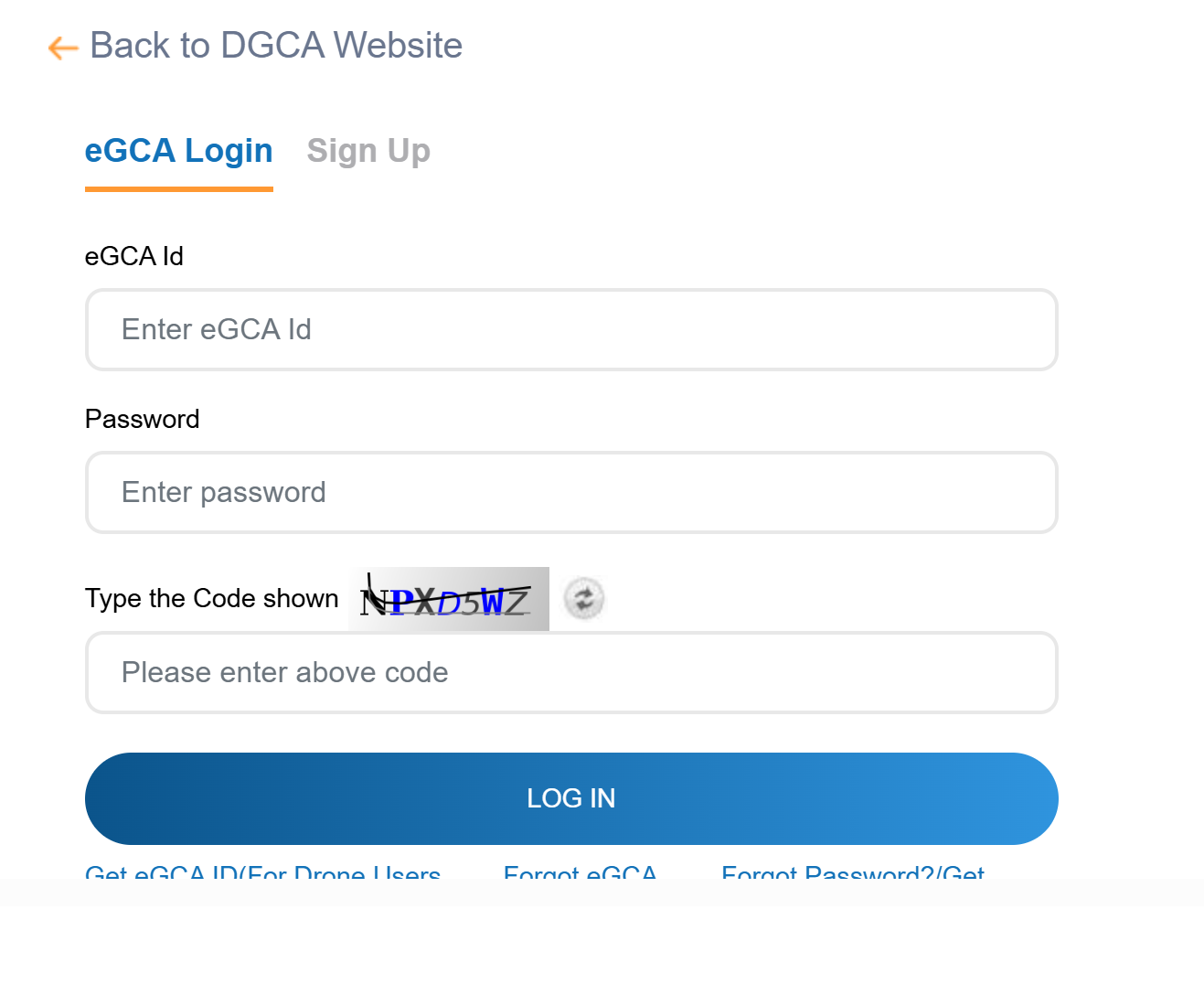
Step 1: Login to the eGCA Portal
Go to the eGCA portal
After login you have to enter an OTP. (Tip: The OTP is valid for 8 hours. If you have to login again, you have to use the same old OTP issued within the last 8 hours. Do not wait for a new OTP)
Step 2: Find the RTR Practical Exam Option
This is where most students get confused.
After logging in:
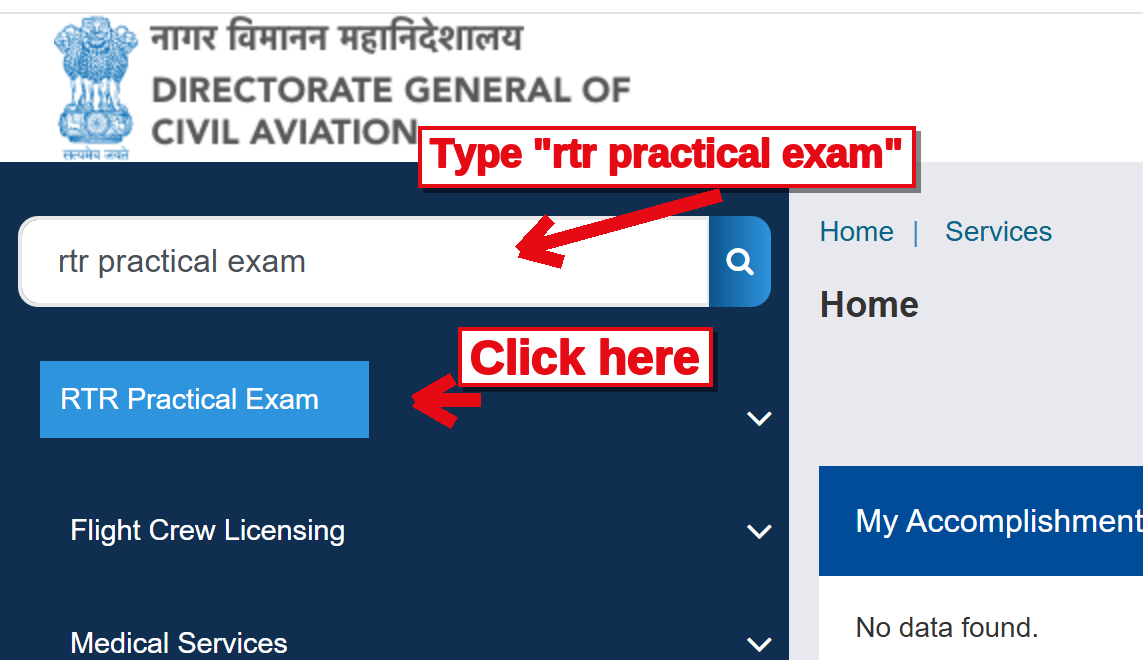
Look for RTR Practical Exam in the left sidebar menu
Or you can also search for RTR Practical Exam in the left side bar as shown in the image below
Step 3: Enter your Computer Number
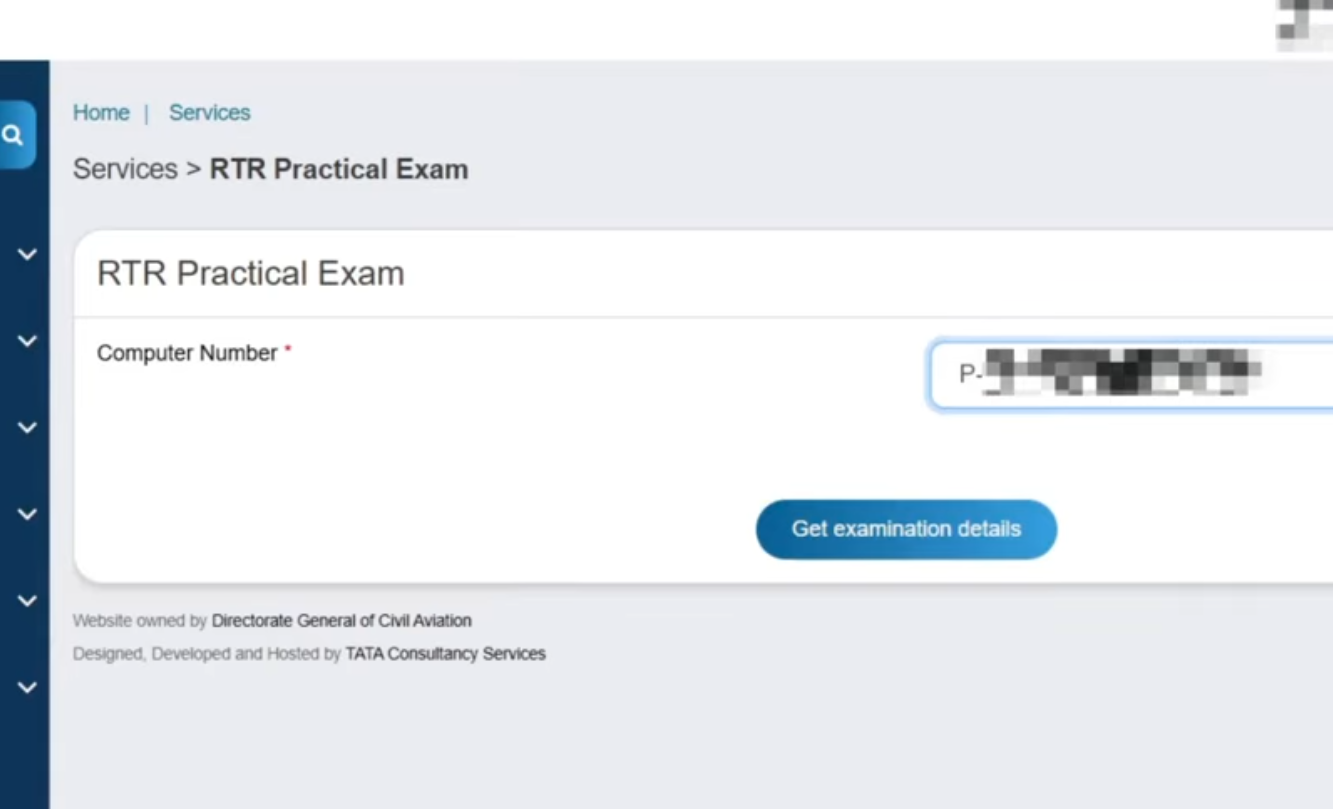
On the initial page after entering RTR Practical Exam, enter your computer number and then click on Get examination details.
Step 4: Verify Basic Details, Examination Results
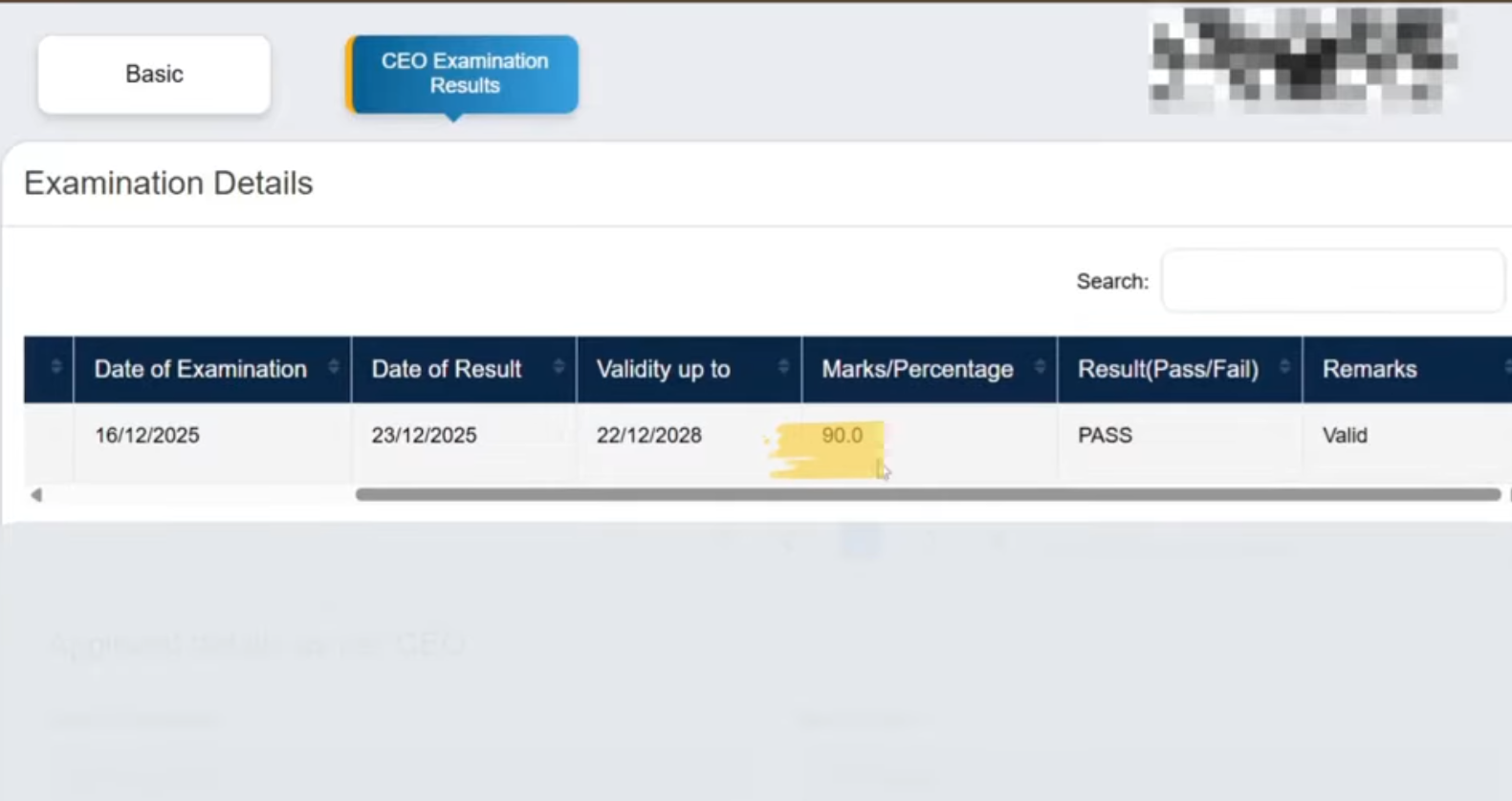
Next step is to verify your personal details and your Examination Results as shown in the image below. Make sure the result says pass. Scroll to the end and click on Proceed to Pay.
Step 5: Enter 10 digit mobile number in Remarks
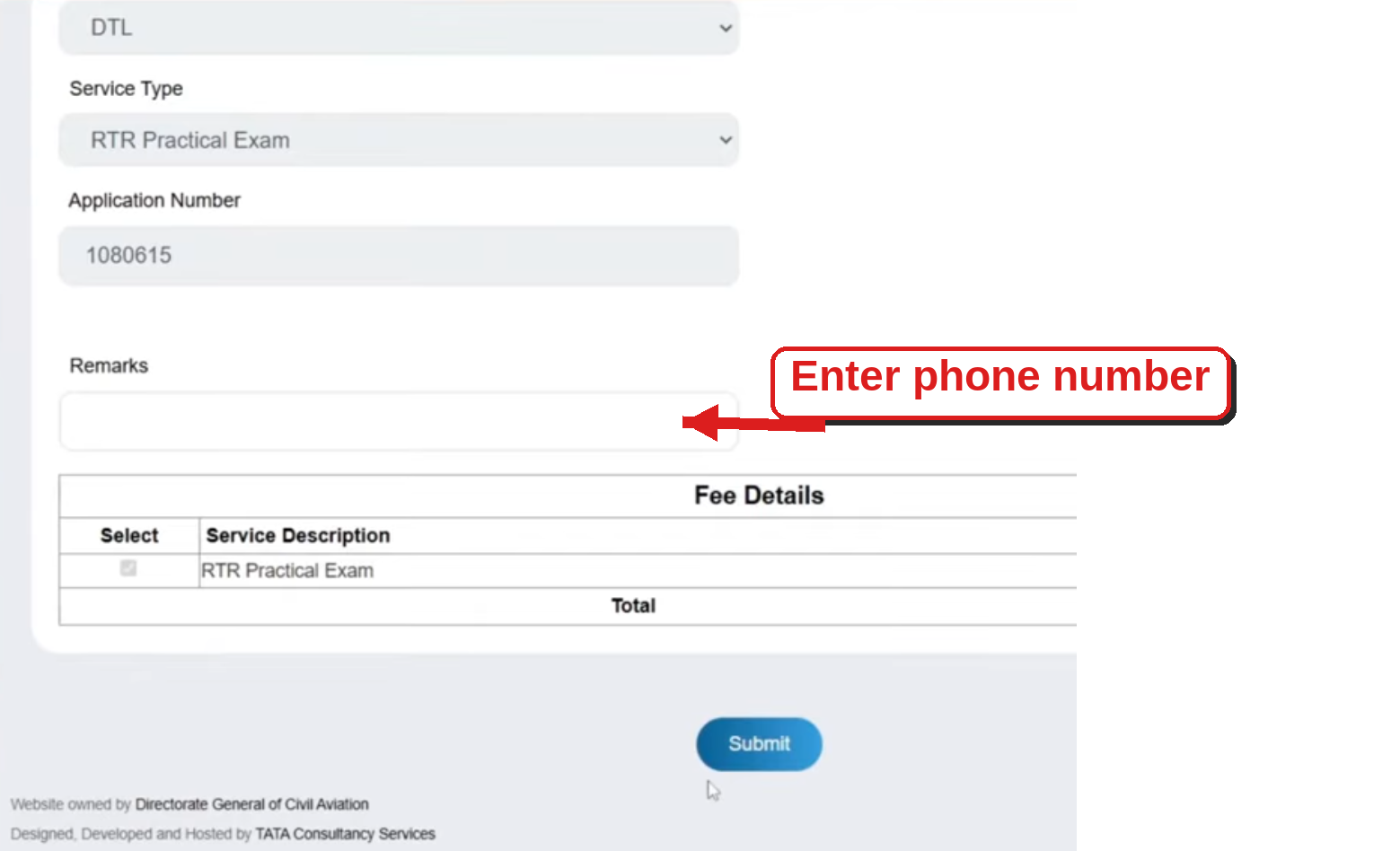
You will see a remarks section. You have to enter your 10 digit mobile number in that and click submit.
Step 6: Make the payment
Proceed to make the payment using the method of your choice. You will get a popup to login to Bharatkosh. Simply close it.
After making to payment, you may have to wait for a few hours before you can book the slot as the payment confirmation takes time depending on the mode of payment.
The payment fails a lot of times so you may have to retry.
Step 7: RTR Worklist
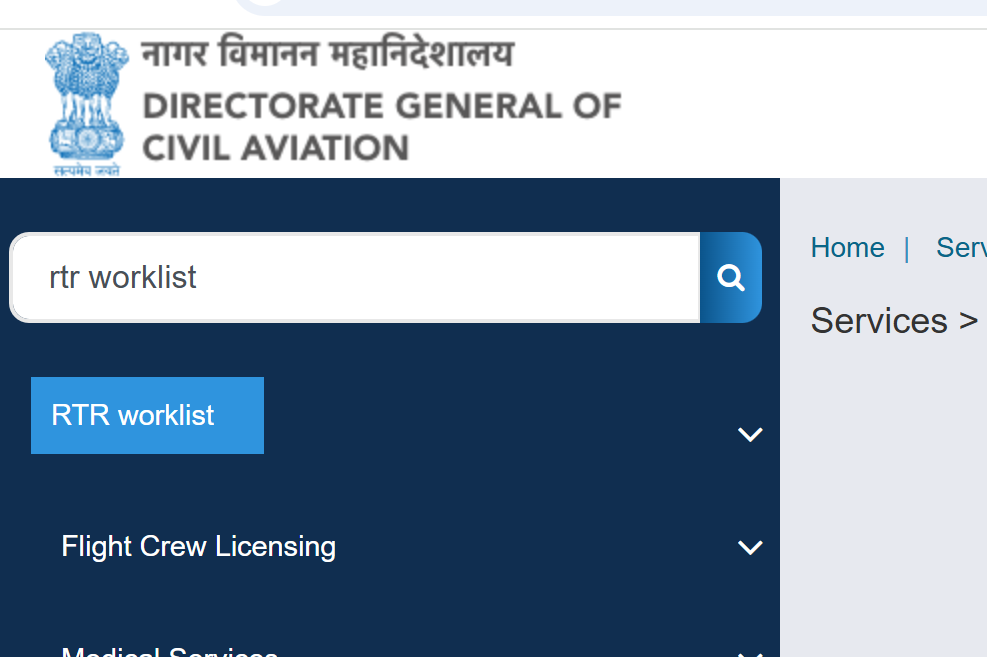
As you searched for RTR Practical Exam, search for RTR Worklist and open it.
Step 8: Slot Booking
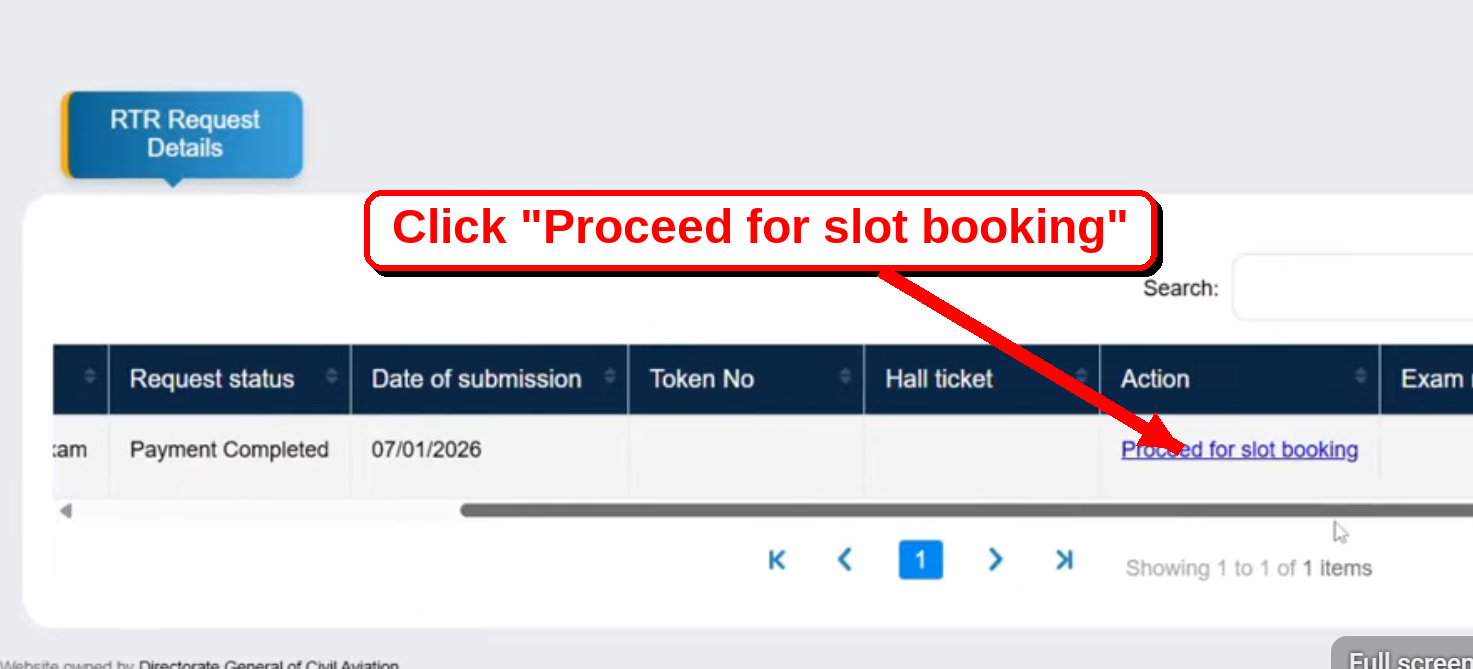
Scroll horizontally to the end and click on proceed to slot booking.
Now again check your details and click on the slot booking tab and select the slot.
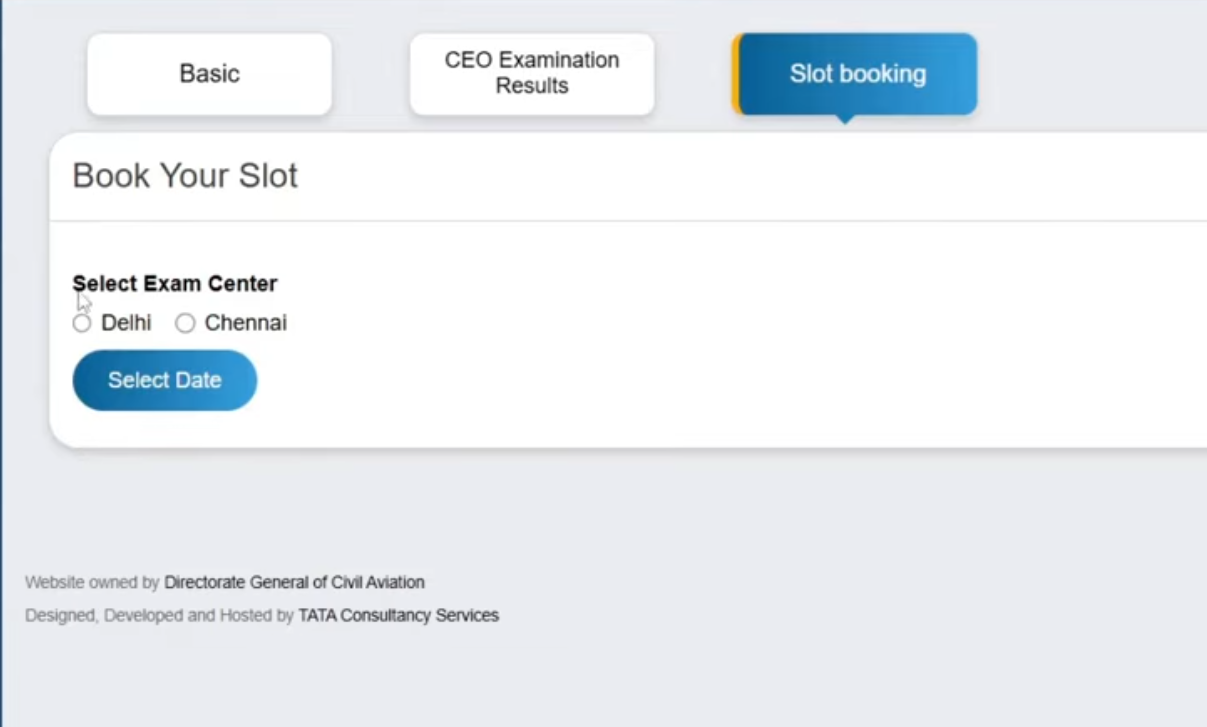
Next select the slot.
If the slot is shaded yellow, it means it is partially booked. If it is red then it is fully booked.
Select either green or yellow shaded date.
You can select either morning or afternoon slot.
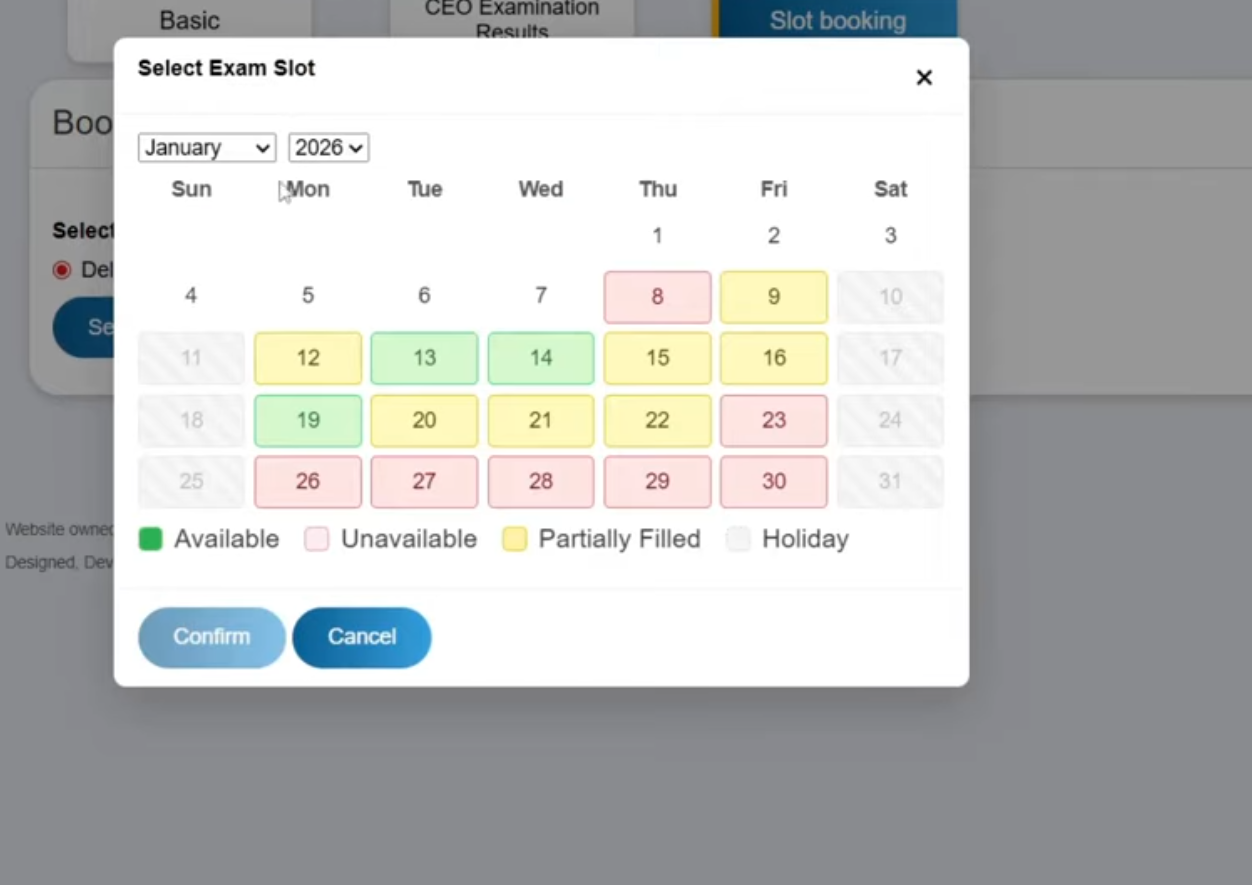
After selecting the date, you have to click the confirm button again and again.
You will receive your hall ticket a few days before the exam via email or you can also download it from the RTR worklist.